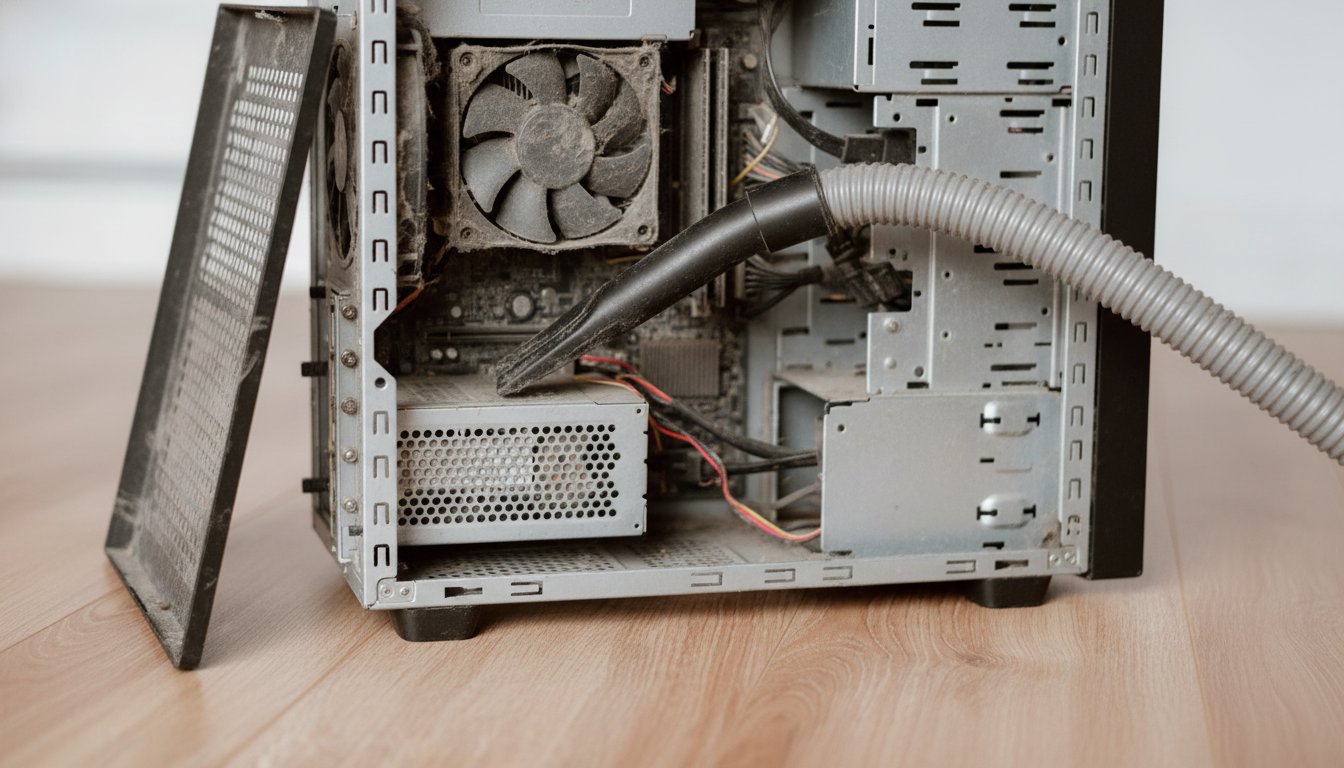
Can I use vacuum cleaner to clean PC internals? No. A household vacuum builds a static charge at the nozzle as air and dust rush across the plastic, and a charge far too small for you to feel can still kill a motherboard. The suction can also spin your fans well past their rated speed.
Vacuum the outside of the case and the removable dust filters if you like. Inside the case, use compressed air or an electric duster.
Can I Use Vacuum Cleaner to Clean PC Internals? The Short Answer
The short answer to can I use vacuum cleaner to clean PC internals is no, and the manufacturers agree. The official cleaning guide from HP states flatly that a regular vacuum should not be used on a computer because it generates static electricity, and that warning appears in almost identical words across HP's complete computer cleaning guide, hardware training texts, and twenty years of technician forums. Stateline Tech states the same rule for our own bench: the household vacuum handles the floor, the desk, and the filters, and it never crosses the case opening.
What makes this question worth a full page is that a vacuum threatens a computer in two separate ways, and most answers you will find online mash them together. The first risk is electrical: static discharge. The second is mechanical: fan over-spin. They come from different physics and they have different fixes, which matters, because people who only hear about the static risk assume a grounded nozzle makes everything safe, and it does not.
This page walks through both risks, what a vacuum is still good for, and the safe routine we use on the bench. The full tool list, method, and schedule live in our guide on how to clean your PC the safe way; this page settles the vacuum question underneath it.
Why Does a Vacuum Cleaner Damage a PC? Static Is the First Risk
A vacuum cleaner damages a PC through static electricity before anything else. When high speed air drags dust across a plastic hose and nozzle, the friction strips electrons and builds a charge on the vacuum itself. Physics calls this the triboelectric effect, and it is the same mechanism that charges a balloon rubbed on your hair. Because the vacuum is not grounded to the computer chassis, that stored charge wants a path out, and the moment the nozzle nears a motherboard trace, a RAM contact, or an exposed pin header, it can jump across as an electrostatic discharge.
The numbers are what make this worth respecting. A hardware safety reference published by Cisco Press puts the threshold for a person to even feel a static shock at roughly 3,000 volts, while PC components can be damaged by as little as 30 volts. A discharge one hundred times too weak for your fingertip to notice is still strong enough to wound a board. The same reference recommends keeping workspace humidity between 45 and 55 percent, because charge builds faster in dry air.
| Static threshold | Voltage | What it means |
|---|---|---|
| Shock a person can feel | ~3,000 volts | Anything below this is invisible to you |
| Charge that can damage a component | ~30 volts | Boards can be wounded by static you never notice |
| Recommended workspace humidity | 45 to 55 percent | Drier air lets charge build faster while you work |
Why Static Damage Stays Invisible
Static damage stays invisible more often than it kills on the spot. A discharge can degrade a chip junction without stopping the machine, and the weakened part then fails weeks or months later, looking like random bad luck. That is why the forums are full of people who vacuumed their towers for years and noticed nothing. Nothing visible is not the same as nothing.
I have vacuumed my PC for years and it still runs, so the static risk is made up.
Electrostatic damage is often cumulative and sub visible. A part can be degraded today and die next winter, and nobody connects the two events. Survivor stories do not measure the machines that quietly lost a fan header, a RAM stick, or a board.
The Second Risk: Suction Spins Fans Faster Than They Were Built to Go
The second risk is mechanical: suction spins fans faster than they were built to go. A case or CPU fan is designed for a specific speed range, and a vacuum hose held over it can drive the blades well beyond that range in either direction of airflow. The first casualty is the bearing. Sleeve and ball bearings wear against their design limits, and an over-spun fan gets loud, wobbly, or dead ahead of schedule.
There is a second, sneakier effect. A fan motor is also a small generator. Spin it with moving air instead of electricity and it induces a voltage that feeds back down the fan header into the motherboard. It is a lower probability failure than plain bearing wear, but it is the reason experienced builders hold a fan still with a finger or a toothpick any time air moves through the case, no matter whether that air blows or sucks.
Static is an electrical problem. Fan over-spin is a mechanical one. A household vacuum triggers both at the same time.
Notice that the two risks have two different mitigations. Grounding yourself and using a non static tool manages the electrical risk. Bracing the fan blades manages the mechanical one. A grounded metal nozzle, the workaround you will see suggested in forums, addresses static only and leaves the fan risk fully in place, which is exactly why the mashed together version of this advice keeps getting people into trouble.
When Is It Okay to Vacuum a Computer?
It is okay to vacuum a computer anywhere the nozzle cannot reach electronics. The case exterior, the vents, the mesh panels, the desk around the tower, and the removable dust filters are all fair game for a household vacuum, and for those jobs it is honestly the best tool, because it captures the dust instead of blowing it around the room. The trouble starts only when the nozzle crosses into the case.
| Spot | Household vacuum | Better tool |
|---|---|---|
| Case exterior, vents, desk area | Safe | A microfiber cloth finishes the job |
| Removable dust filters, taken off the case | Safe | Washable filters can be rinsed, dried fully, reinstalled |
| Desktop keyboard | Low risk, loose keycaps can pull free | A soft brush and short bursts of air |
| Inside the case, near any board | Never | Compressed air or an electric duster |
| Any fan, with suction | Never | Braced blades plus short bursts of air |
There are two legitimate vacuum tricks worth knowing. First, purpose built ESD safe vacuums and blowers exist, grounded and made of non charging materials, and technicians use them; the MetroVac DataVac ESD line is the commonly named example, running roughly $55 to $220 depending on model and retailer in late 2024 and 2025 listings. Second, the catch method: take the tower outside or to the garage, blow the dust out of the components with air, and hold the vacuum hose a few inches outside the open case so it swallows the airborne cloud. The vacuum never enters the case, and your garage stays breathable.
What Should You Use Instead of a Vacuum Cleaner?
What you should use instead of a vacuum cleaner is moving air that carries no charge: canned compressed air or an electric duster. Canned air is not stored room air. It is a liquefied propellant gas that leaves the valve as a strong, dry, non conductive stream, which is what makes it safe around electronics, as the gas duster reference on Wikipedia explains. The stream dislodges dust without touching anything and without the plastic on plastic friction that charges a vacuum nozzle.
Canned air has its own rules. The gas leaves the nozzle extremely cold, roughly minus 20 to minus 40 degrees Celsius per manufacturer application guidance published in 2026, and tilting or shaking the can sprays freezing liquid propellant instead of vapor. Keep the can within about 15 degrees of vertical, use short bursts, and let it warm back up between long sessions.
Where to Buy Compressed Air (and What a Can Costs)
Where to buy compressed air is the easy part: hardware stores, office supply stores, electronics counters, and every large online retailer stock it, usually shelved as gas duster or electronics duster. Listings in the research pull for this article ran roughly $8 to $30 per can depending on size, count, and brand, and canned air prices drift by retailer, so treat that as a range rather than a quote. If you dust more than twice a year, the math favors an electric duster: one purchase that starts around the price of a handful of cans, with no propellant rules to remember.
How to Clean a PC Without Compressed Air
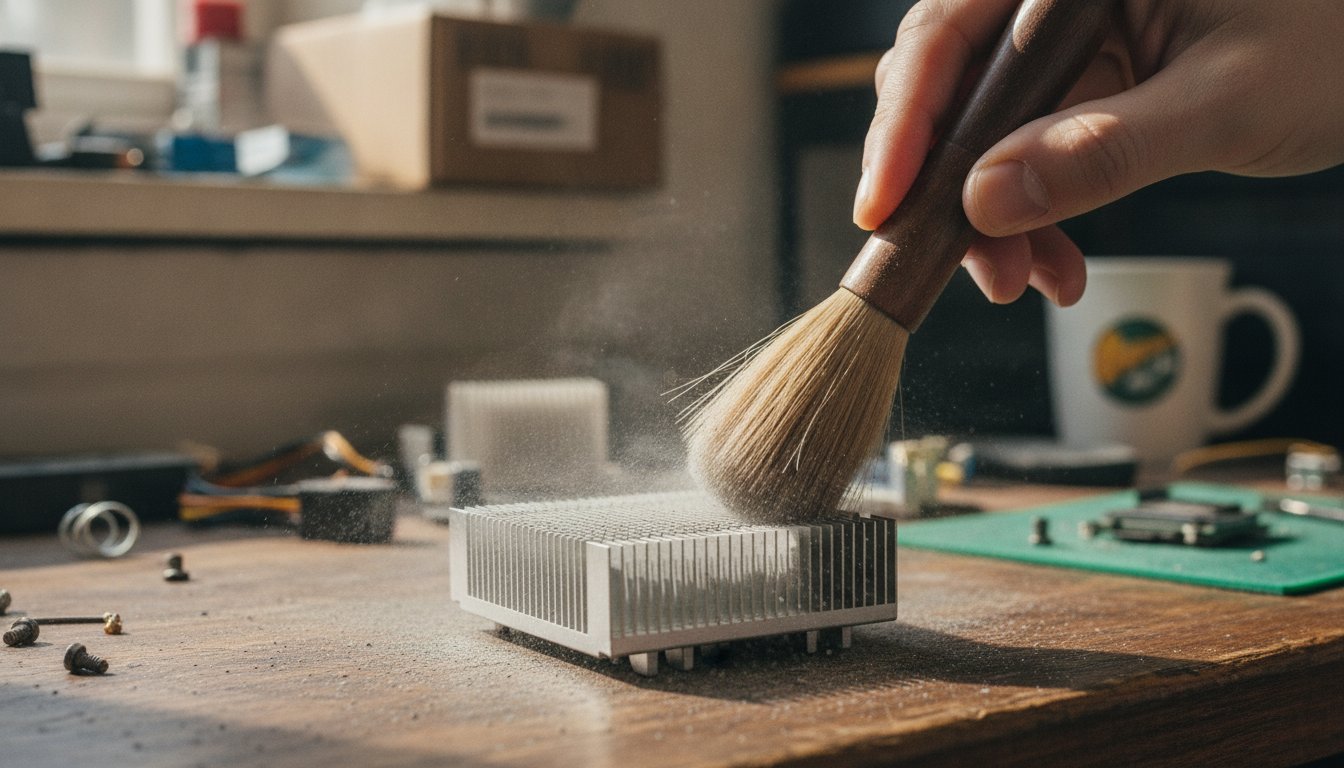
How to clean a PC without compressed air comes down to soft tools and patience. A clean, dry, soft bristled brush, a natural makeup brush or an anti static nylon brush both work, loosens packed dust from heatsink fins and fan blades, and a microfiber cloth lifts what settles on flat surfaces. Work outdoors, keep one hand on bare case metal, brace each fan while you brush it, and never substitute a damp cloth or a vacuum for the brush inside the case. It is slower than air, and it works.
How to Clean the Inside of a PC Safely, Step by Step
To clean the inside of a PC safely, step by step, work in the order below. The order is the safety system: power gone first, static managed before anything is touched, fans braced before air moves. The whole routine takes 10 to 15 minutes on a typical desktop.
Cut every source of power
Shut down, flip the power supply switch to O, unplug the cord, then hold the power button for 10 seconds to drain the capacitors.
Move the machine off the carpet
A garage, a porch, or a hard floor near an open window. The dust cloud stays out of your house and carpet static stays away from the work.
Ground yourself before reaching in
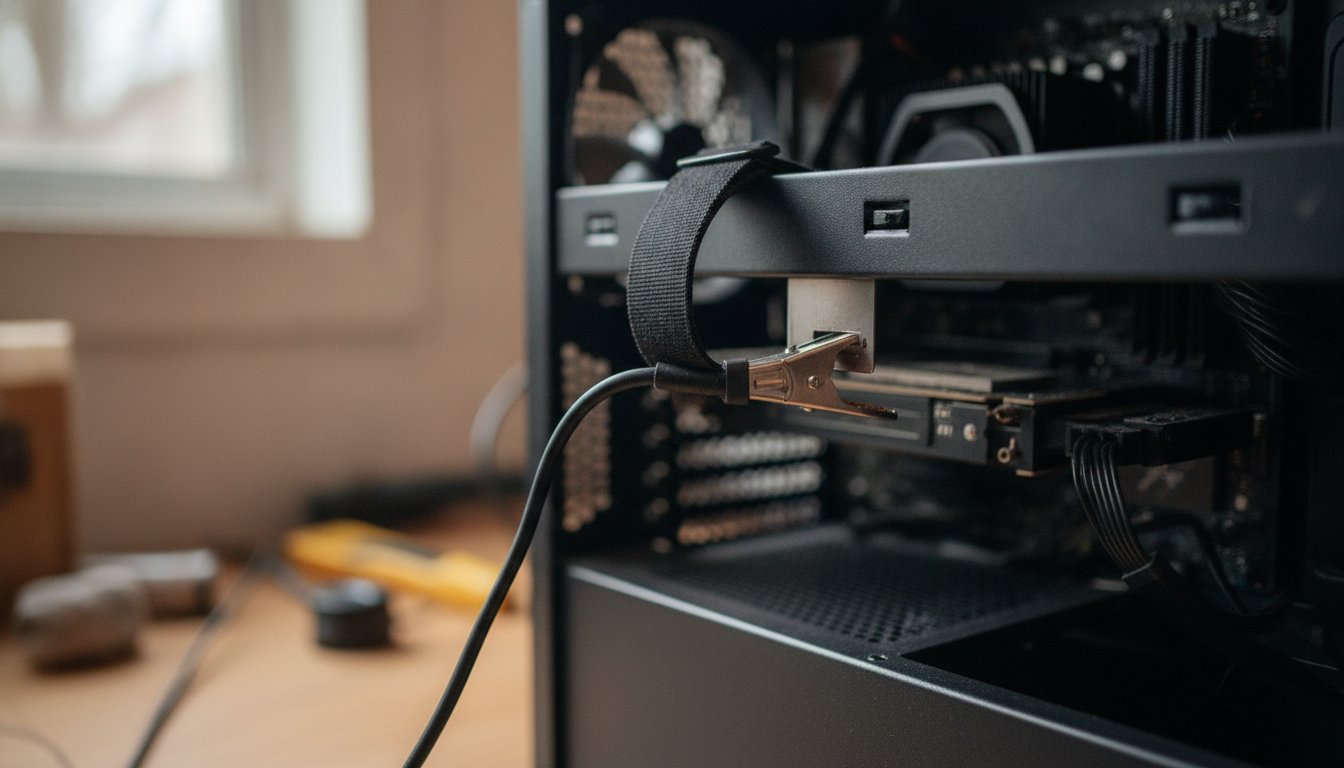
Touch unpainted metal on the chassis, and keep touching it periodically, or wear an anti static wrist strap clipped to bare case metal.
Brace every fan before air touches it
Hold the blades still with a finger or a toothpick. This one habit removes the entire over-spin and back voltage risk.
Short bursts, can upright
Sweep dust from the heatsinks, fans, and power supply grill toward the case openings a few inches back from every part.
Finish with the filters, not the boards
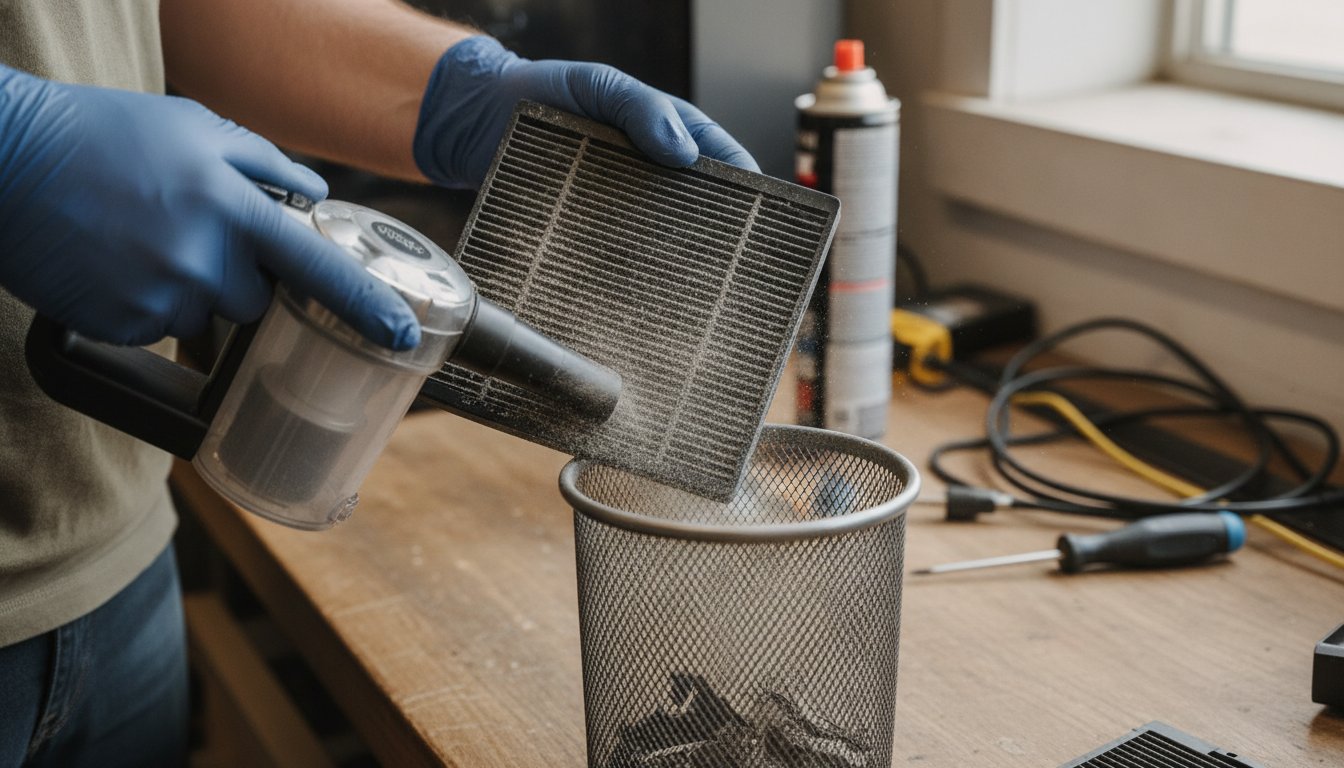
Pull the dust filters, vacuum or rinse them away from the case, dry them fully, and reinstall. The vacuum earns its keep here.
Laptops follow the same logic with less access: power off, short angled bursts through the vents, keyboard turned upside down and tapped, and no vacuum against the vents while the machine is assembled. A laptop that needs more than vent dusting needs its chassis opened, and that is bench work unless you have done it before. For the full desktop teardown, tool list, and how deep to go each season, use the pillar guide linked above; this page stays at the safe routine level on purpose.
How Often Should You Clean the Dust Out of a PC?
Clean the dust out of a PC every 3 to 6 months in a typical home, which is the interval component maker Corsair recommends in its cleaning frequency guide. Push that to every 2 to 3 months for floor level towers, carpeted rooms, pets, workshops, or a smoking household, and machines in clean, elevated, filtered setups can stretch toward 6 to 12 months. The filter check is a quick monthly habit either way.
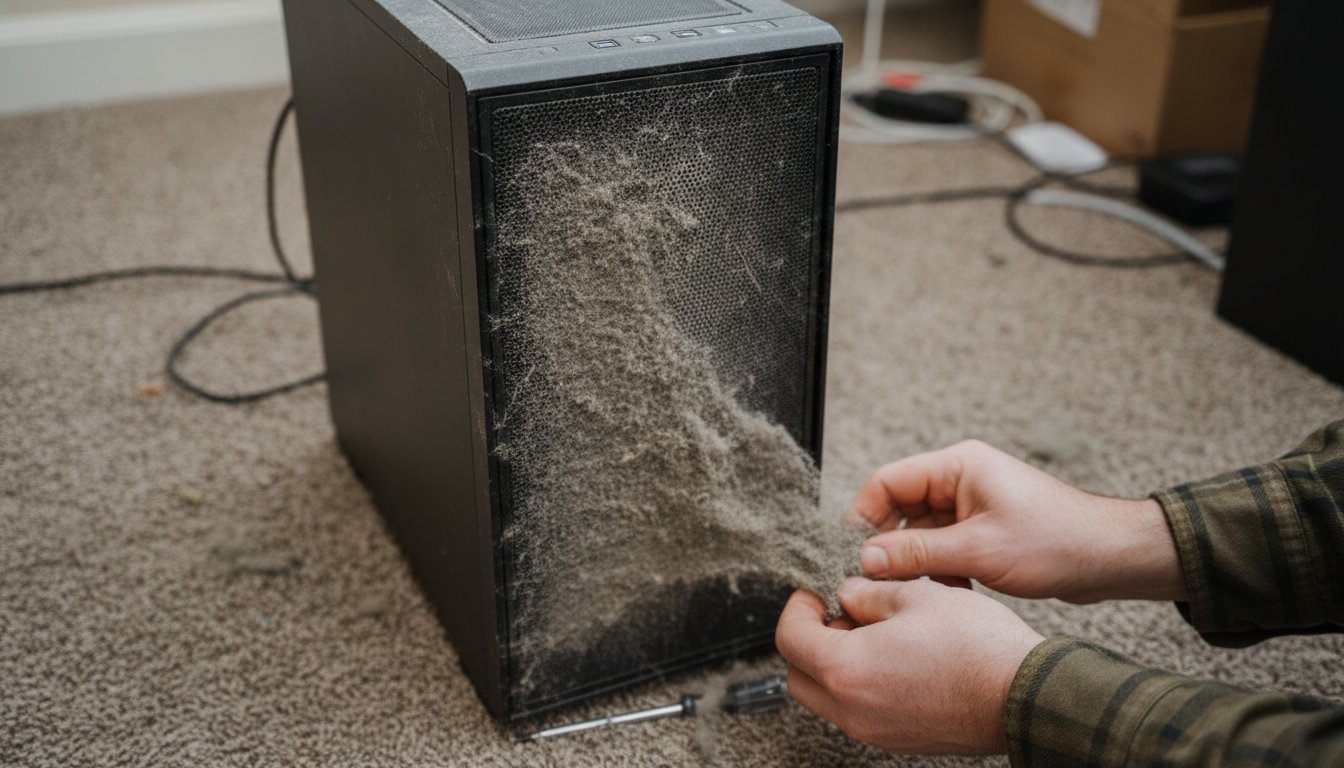
Cadence matters because dust works slowly. It blankets heatsinks, insulates the parts that need to shed heat, and pushes temperatures up until the machine protects itself by slowing down. If you want the measured numbers on what a cleaning is worth, our companion page on whether cleaning a PC actually improves performance lines up the published before and after tests. The short version: a hot, clogged machine gains real speed, and a cool one gains lifespan.
When DIY Wins and When a Bench Makes Sense
DIY wins most of the time here, and we will say that plainly even though cleaning is a service we sell. A can of air, an open garage door, and the six steps above handle a normal seasonal dusting for under $30, and nothing about routine dust removal requires a technician. If your case opens with two thumbscrews and your machine runs quiet and cool, keep your money and set a calendar reminder.
Costs a can of air, takes 10 to 15 minutes, and covers routine dust completely. The safety rules fit on an index card: power off, ground yourself, brace the fans, can upright.
Earns its fee when dust is packed or sticky, the machine has already misbehaved, a vacuum has already been inside it, or you would rather not open the case at all.
A bench makes sense in four cases. Packed, greasy, or smoke bonded dust needs disassembly that goes past a seasonal blowout. A machine that overheats, crashes, or shuts down needs diagnosis, not just dusting. A machine a vacuum has already visited deserves a checkup, because the damage static leaves is the quiet kind.
And some people would rather pay a fair price than open a case, which is a reasonable choice; big box desktop cleanings listed at $39.99 to $74.99 in an August 2026 research pull, and local shops compete in that range. Stateline Tech provides that service from our own PC cleaning bench, with the diagnosis explained before the work starts.
Frequently Asked Questions About Vacuums and PC Cleaning
Can I Use a Vacuum to Clean My PC Fans?
No. Vacuum suction spins fan blades past their rated speed, which wears the bearings, and a spinning fan motor generates a voltage that can feed back into the motherboard header. Hold each fan still with a finger or a toothpick and use short bursts of compressed air instead. The vacuum is fine for the removable dust filter once it is off the case.
Can I Use a Vacuum Cleaner to Clean My Laptop?
Keep the vacuum off an assembled laptop. The vents sit millimeters from the fan and the board, so both the static and the over-spin risks apply at closer range than in a desktop. Power the machine off, use short angled bursts of compressed air through the vents, and turn the keyboard upside down to tap crumbs loose. Deeper cleaning means opening the chassis, which is technician territory.
Can a PC Run in a Vacuum?
No, and this cousin of the cleaning question is about physics rather than appliances. Computer cooling depends on fans moving air across heatsinks, and a true vacuum contains no air to move, so heat would have nowhere to go and the processor would overheat and shut down. Spacecraft computers solve this with conduction and radiation cooling designed for the job, which desktop hardware does not have.
What Is the Best Way to Clean My PC?
Power everything down and drain it, take the tower somewhere the dust cloud does not matter, ground yourself on bare case metal, brace each fan, and clear the dust with short upright bursts of canned air or an electric duster. Vacuum only the exterior and the removed filters. Done every 3 to 6 months, that routine covers what a typical home machine needs.
Do I Need an Anti Static Wrist Strap to Clean My PC?
A strap is cheap insurance rather than a strict requirement for a blow out cleaning where you touch nothing inside. Touching unpainted chassis metal before and during the work discharges you for casual cleaning. The strap earns its few dollars the moment you handle components, reseat RAM, or brush packed dust directly off boards, and it removes the need to remember to keep grounding yourself.
If your tower is packed with dust, already met a vacuum cleaner, or runs hotter and louder than it used to, call Stateline Tech at (608) 214-5158 or bring it to our PC cleaning bench and we will clean it the safe way, check what the dust or the vacuum may have already cost you, and tell you plainly if nothing is wrong.