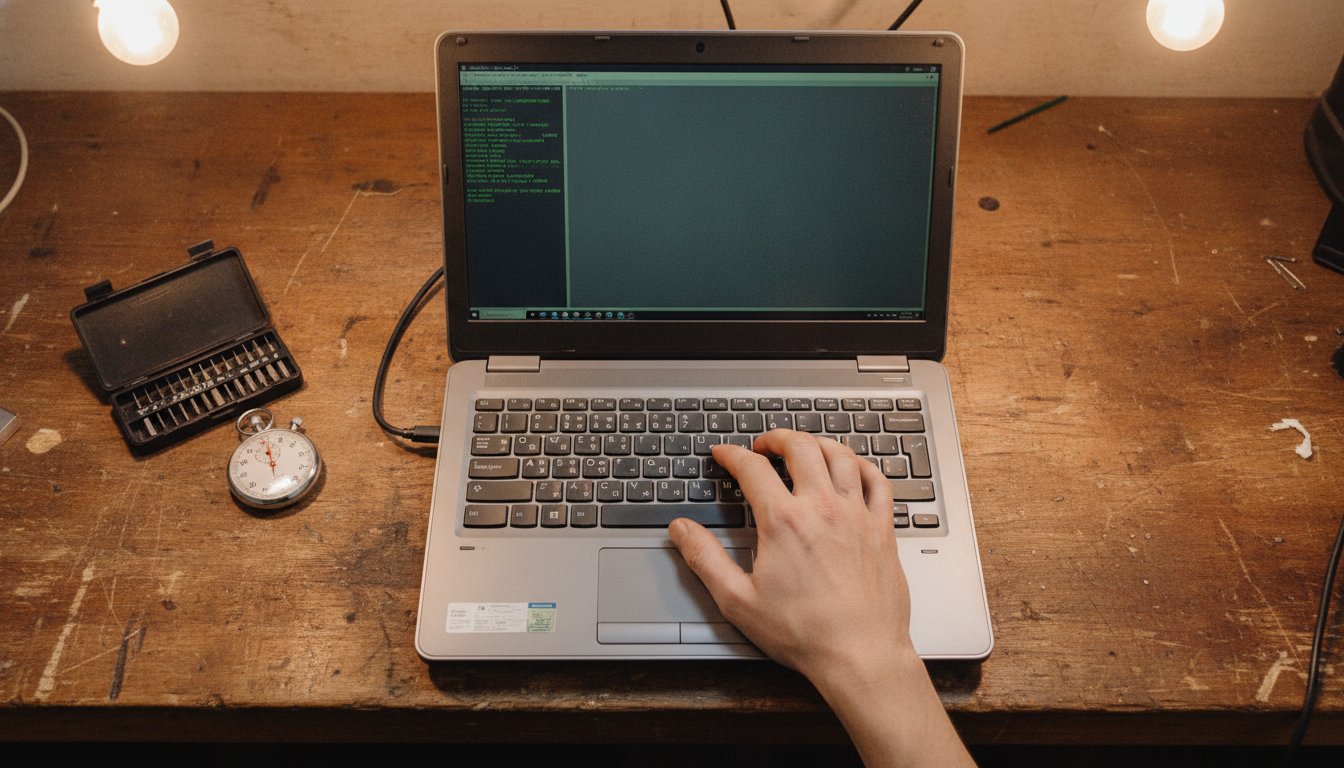
Stateline Tech hears one question at the bench more than any other: how to repair a slow computer. The honest answer is to work through the free software fixes first. Restart the machine fully, disable startup programs, free up drive space, run a malware scan, and install updates; those steps clear most of the slow machines that cross a repair bench. Below, every step carries a time label, so you know a two minute fix from a 45 minute one before you start.
Why Is My Computer So Slow?
Why is my computer so slow is almost always a software question before it is a hardware question. A computer running slow after years of normal use has usually collected startup programs, a nearly full drive, and background clutter, not a broken part. Hardware does fail, but it announces itself differently, with clicking noises, sudden shutdowns, and crashes rather than plain sluggishness.
The Software Causes of a Computer Running Slow
Four software causes explain most slow machines. First, too many programs launch at startup and stay resident. Second, the drive is too full: performance problems become noticeable once a drive passes roughly 80 to 90 percent of its capacity, per a May 2025 IT support guide. Third, malware or unwanted programs burn resources in the background, and fourth, the operating system and drivers sit far behind on updates.
The Hardware Causes to Rule Out
Only three hardware causes come up often: a spinning hard drive that was never replaced with a solid state drive, too little memory for modern software, and dust buildup that makes the processor overheat and slow itself down on purpose. Before you spend anything on any of them, it helps to know what computer repair actually costs, so you can judge whether a quote is fair. The self-test later in this guide tells you which side of the line your machine is on.
How to Repair a Slow Computer: Six Free Steps in Order
How to repair a slow computer starts with six free steps, done in this order, before any money changes hands. Most guides on how to fix a slow computer list a dozen or more steps with no time labels, so a 30 second fix sits next to an hour long one, unlabeled. Stateline Tech labels every step, because your evening matters.
| Step | Time | What it fixes | Skip it when |
|---|---|---|---|
| 1. Full restart | 2 min | Stuck processes, memory cache | You restarted today |
| 2. Disable startup programs | 10 min | Slow boot, background load | Startup list is already short |
| 3. Free up drive space | 15 to 30 min | Slow file work, failed updates | Drive is under 80 percent full |
| 4. Full malware scan | 30 to 60 min, unattended | Hidden resource drains | Never skip this one |
| 5. Install updates | 20 to 45 min | Bugs, driver problems | Updates ran this month |
| 6. Trim background apps, check power plan | 5 min | Laptop stuck in power saver | Desktop already on high performance |

Step 1: Restart the Machine Fully (2 Minutes)
A full restart clears the memory cache and resets stuck background processes, and it is a distinct fix, not a superstition. Use Restart, not Shut down: on Windows, the default fast startup setting means Shut down preserves part of the old session while Restart truly starts clean. If the machine has been on for weeks, do this before judging anything else.
Step 2: Disable Startup Programs (10 Minutes)
Open Task Manager with Ctrl+Shift+Esc, choose the Startup apps tab, and turn off everything you do not need at boot. Windows measures each entry with a startup impact rating of High, Medium, or Low, and Microsoft publishes the official steps for managing startup applications through both Settings and Task Manager. Some entries hide outside that list, in the startup folders and Task Scheduler, which is one reason a cleanup sometimes needs a second pass.
Step 3: Free Up Drive Space (15 to 30 Minutes)
The operating system needs free space for temporary files, virtual memory, and update staging, so a stuffed drive slows everything, not just saving files. Turn on Storage Sense and run the cleanup recommendations; Microsoft documents the full drive space cleanup process step by step. Aim to get the drive back under that 80 to 90 percent line.
Step 4: Run a Full Malware Scan (30 to 60 Minutes, Unattended)
Run a full scan, not a quick scan, with Windows Security or the antivirus you already pay for, and let it work while you do something else. One caution on reading the result: 82 percent of intrusions detected in 2025 used no malware file at all, relying on stolen credentials instead, according to a June 2026 threat report summary. A clean scan removes the common resource drains, but it is not proof the machine is untouchable.
Step 5: Install Updates (20 to 45 Minutes)
Run Windows Update until it reports nothing left, including the optional driver updates. Outdated graphics, storage, and chipset drivers cause exactly the vague slowness this page is about, and the fix costs nothing but time. Restart again when the updates finish, since several only apply on the next boot.
Step 6: Trim Background Apps and Check the Power Plan (5 Minutes)
Close the browser tabs and background apps you are not using; each one holds memory whether you look at it or not. On a laptop, open the power settings and make sure it is not stuck in a power saver mode, which trades speed for battery on purpose. These two checks take five minutes and cost nothing.
The Mac Version of the Same Steps
Mac owners follow the same free-first logic with different names: Activity Monitor instead of Task Manager, Login Items instead of the Startup tab, and the built-in storage recommendations for drive space. Apple publishes its own official slow Mac troubleshooting flow, and it follows the same order this page does.
How Do I Find Out What Is Slowing Down My Computer?
To find out what is slowing down my computer, as searchers put it, open Task Manager with Ctrl+Shift+Esc and read it before changing anything. Click the CPU, Memory, and Disk column headers to sort, and watch for two minutes. The process sitting at the top of a column that stays near 100 percent is your suspect, and the fix depends on which column it dominates.
Reading Task Manager Without Guessing
High CPU from one program points at that program, so update it, reinstall it, or replace it. Memory constantly near its limit points at too many residents or too little RAM. Disk pinned at 100 percent on an older machine very often points at a spinning hard drive at the end of its useful life. Mac users get the same three columns in Activity Monitor.
Is It Hardware or Software? A Ten Minute Self-Test
Whether a slow machine is a hardware or a software problem is the question the big guides never answer plainly, and you can test it at home in about ten minutes. That distinction decides how to repair a slow computer for real: software problems respond to the free list above, and hardware problems do not, no matter how many times you run it.
The Signs That Point Straight to Hardware
A drive that clicks or reports a failing health status is a stop sign: back up your files today, before deciding anything else, because a failing drive turns a cheap fix into an expensive one. Our guide to what data recovery costs explains why prevention is the bargain. A machine still crawling in Safe Mode, shutting down under load, or failing into repair screens points the same direction; if yours cycles a blue repair screen at boot, see our walkthrough of the preparing automatic repair loop.
Dust, Heat, and Thermal Throttling
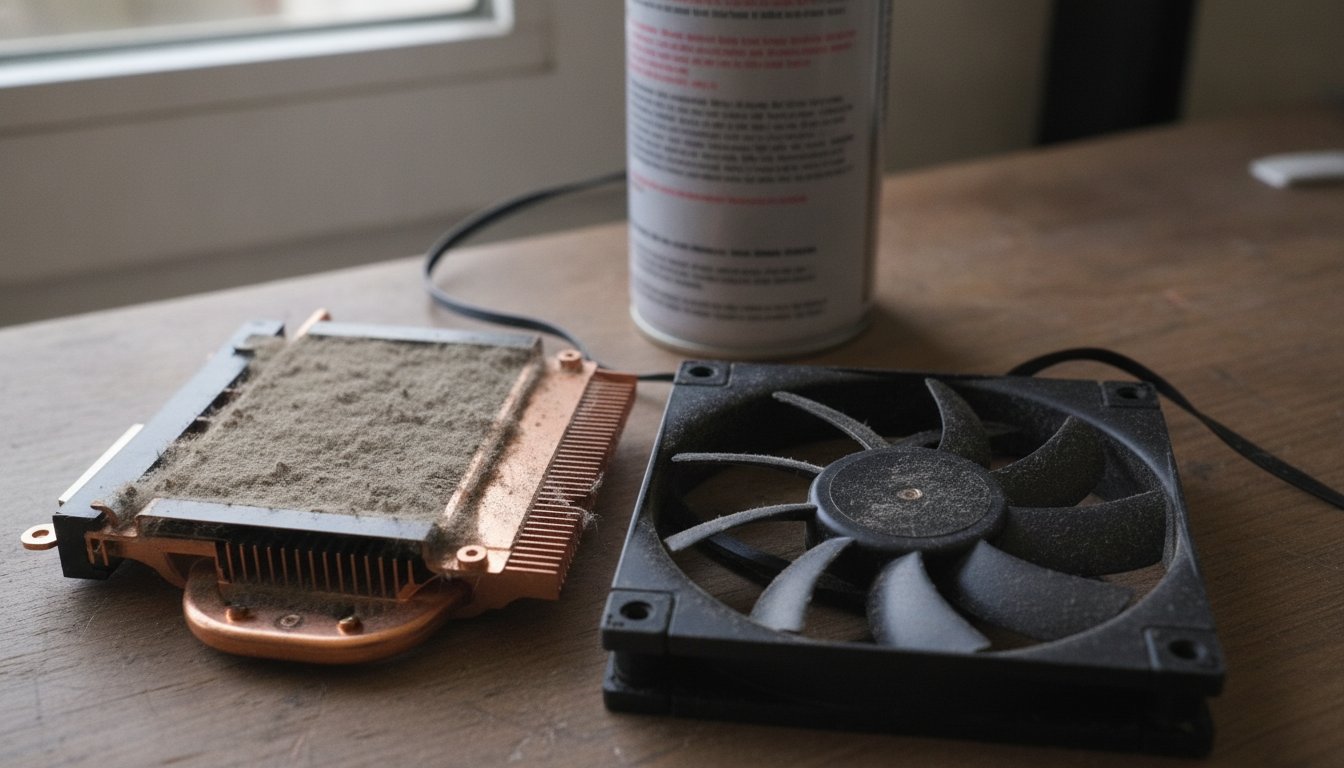
Dust blocks airflow, the processor overheats, and it deliberately slows itself down to survive, a behavior called thermal throttling. One independent 2018 bench test measured a processor running roughly 20 degrees Celsius cooler after a full interior cleaning on a single test rig; treat that number as directional, not universal, but the mechanism is real. We cover the evidence in does cleaning a PC improve performance, and our PC cleaning in Freeport handles the dust removal itself. If the self-test points at hardware, a bench diagnostic through our computer repair service settles the question before you buy parts on a guess.
Do You Need More RAM or an SSD?
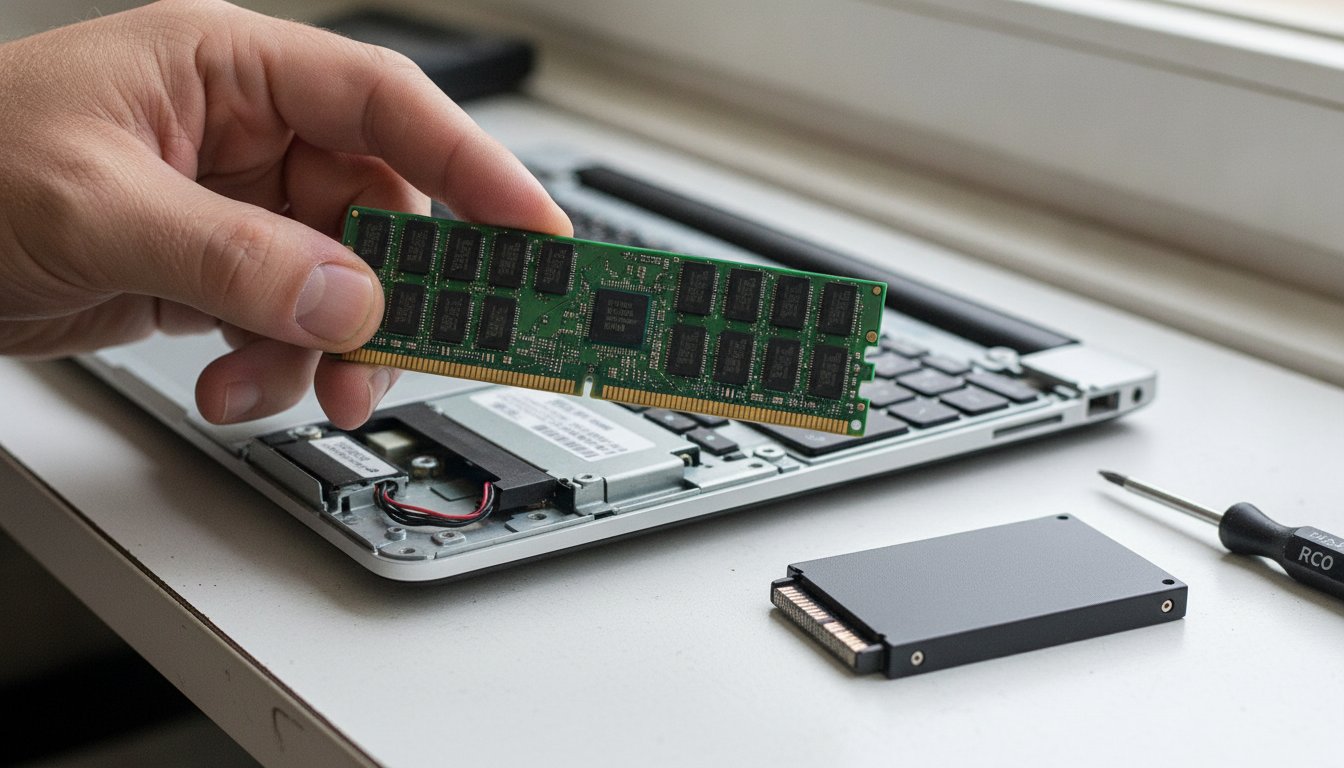
Do you need more RAM or an SSD is the right upgrade question, and Task Manager already answered it for you. If memory sits near 90 to 100 percent during normal work, RAM is the bottleneck. If the machine still boots from a spinning hard drive, the drive is the bottleneck, and swapping it for a solid state drive improves nearly everything the machine does.
How to Tell Which Upgrade Your Machine Needs
Windows 11 officially requires 4 gigabytes of memory, per the official Windows 11 specifications, but published 2024 to 2026 testing shows Windows holding 2 to 4 gigabytes at idle by itself, which is why 8 gigabytes is the practical floor and 16 is comfortable for heavy multitasking. The drive gap is wider than the memory gap. Per July 2026 published comparisons, a hard drive moves 30 to 150 megabytes per second while a mainstream SSD moves 500 to 3,500 or more.
| Drive type | Typical cold boot | Sequential speed |
|---|---|---|
| Hard drive (HDD) | 30 to 40 seconds | 30 to 150 MB/s |
| Solid state (SSD) | 10 to 15 seconds | 500 to 3,500+ MB/s |
Both rows come from July 2026 published drive comparisons; the chart and the table show the same numbers.
Two Upgrade Myths That Waste Money
More RAM always makes a slow computer faster.
RAM helps only when memory is the actual bottleneck. If the machine runs a spinning hard drive or carries startup bloat, added RAM changes almost nothing.
Defragmenting is still routine maintenance for every computer.
Defragmenting only helps spinning hard drives. On an SSD it adds wear for zero benefit, so leave the automatic optimization schedule alone.
When Free Fixes Are Not Enough: What Paid Help Costs
When free fixes are not enough, a professional software tune-up runs about 30 to 40 dollars from the big chains: an office supply chain lists its in-store and remote PC tune-up at 29.99 dollars on a page dated December 2024, and a June 2025 pricing summary lists the big-box remote tune-up at 39.99 dollars. Both publishers note that prices vary by location and promotion, so treat these as published anchors with dates, not quotes.
| Published service | Price | As of |
|---|---|---|
| Office store PC tune-up, in-store or remote | $29.99 | December 2024 |
| Office store tune-up, in-home | $129.99 | December 2024 |
| Big-box remote tune-up | $39.99 | June 2025 |
| Big-box in-home service range | $99.99 to $399.99 | June 2025 |
When Paying Beats Another Weekend of DIY
The arithmetic is plain: if an hour of careful diagnosis produces no improvement, a 30 to 40 dollar remote tune-up costs less than a second lost evening. Pay when the free steps are done and the machine is still slow, when the self-test points at hardware, or when you want the startup list, updates, and scan handled in one sitting by someone who does it daily.
One clear software cause, you are comfortable in Settings and Task Manager, and the free steps are showing progress.
Multiple stacked problems, signs of hardware failure, or the free list is done and the machine still crawls.
Should You Repair or Replace a Slow Computer?
Should you repair or replace a slow computer comes down to age and the size of the quote. Repair industry sources publish a rule of thumb that replacement wins once a repair quote reaches roughly 40 to 70 percent of the price of a comparable new machine, with 50 percent the most cited line. Worth knowing: those thresholds are published by repair shops themselves, so read them as a range, not a law.
Age settles most close calls. A machine under about three years old with a single fixable problem is usually worth repairing, and a machine past five to seven years with several problems at once usually is not. A slow computer alone is rarely a reason to replace anything, because slowness is the most fixable symptom a computer has.
Slowness is the most fixable symptom a computer has.
Frequently Asked Questions About a Slow Computer
Can a slow computer be fixed?
Yes, a slow computer can be fixed in most cases, and usually for free. Startup cleanup, drive space, a malware scan, and updates resolve the majority of slow machines. The stubborn remainder typically needs one hardware change, most often swapping a spinning hard drive for a solid state drive, rather than a whole new computer.
What is the most common reason for a slow computer?
The most common reason for a slow computer is accumulated software load: too many programs launching at startup and staying resident in the background. A nearly full drive is the close second, with performance problems becoming noticeable past roughly 80 to 90 percent capacity. Both are free fixes that take under half an hour combined.
Does more RAM make your computer faster?
More RAM makes your computer faster only when memory is the real bottleneck, meaning Task Manager shows it near 90 to 100 percent during normal use. If the slowdown comes from a spinning hard drive, startup bloat, or malware, added RAM changes very little, which is why you diagnose before you buy.
Does defragmenting still help speed up a PC?
Defragmenting helps only if the computer still uses a spinning hard drive, where scattered files force the mechanical head to travel farther. On a solid state drive it provides no speed benefit and adds unnecessary wear. Windows already optimizes each drive type correctly on a schedule, so there is nothing to run by hand.
How much does it cost to get a computer fixed?
Published national pricing puts remote tune-up and repair services at about 20 to 150 dollars and in-home service at roughly 100 to 400 dollars, per a June 2025 pricing summary, with software tune-ups clustering near 30 to 40 dollars. Prices vary by region and promotion, so ask for a diagnosis and a firm quote before approving any work.
If the free steps did not bring your machine back, Stateline Tech will find the real problem before you spend a dollar on the wrong fix: book our computer repair bench service, the same bench we use for computer repair in Freeport, or call (608) 214-5158.